



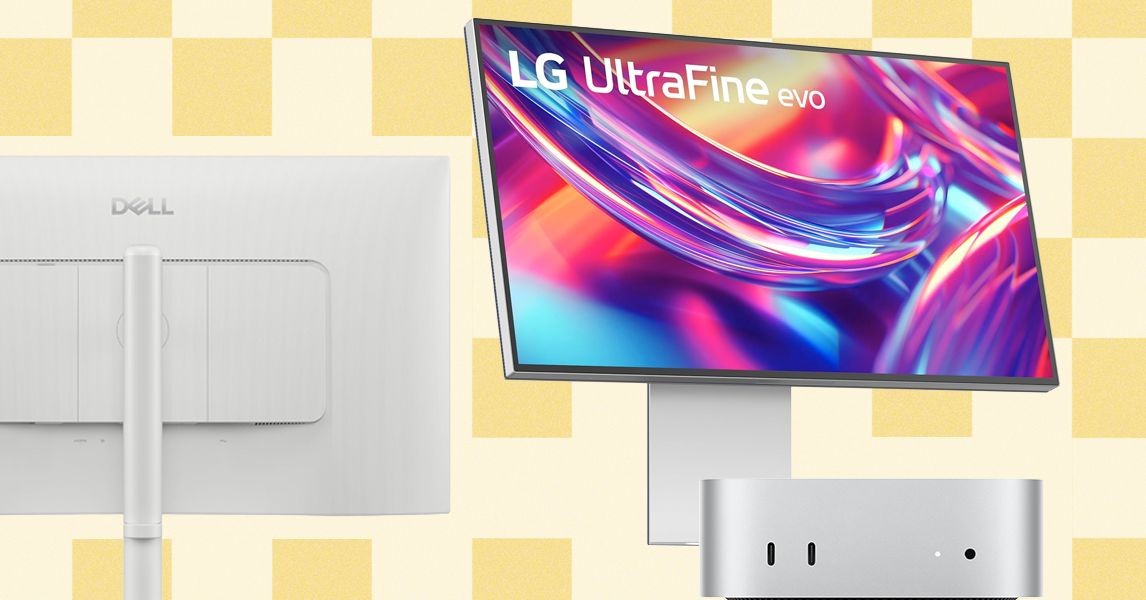
The Mac Mini is a powerful, compact computer that can benefit significantly from a well-chosen external monitor. While any display will work, selecting the right one enhances the experience. This guide breaks down the key considerations, from size and resolution to adjustability and ports, helping you maximize your Mac Mini setup without overspending.
Size, Resolution, and Refresh Rate: What Matters Most
Modern monitors typically range from 27 to 32 inches, with ultrawide 34-inch options available for those who prefer a wider 21:9 aspect ratio. Apple prioritizes high pixel density, which translates to sharper images. For Mac Mini users, 4K resolution is a solid minimum. Stepping up to 5K or 6K on larger screens (32-inch and above) further sharpens the display.
Refresh rate is also crucial, especially for smoother animations and gaming. While basic use doesn’t require it, a 120Hz refresh rate (standard on MacBook Pros) delivers a more fluid experience. Lower refresh rates can result in motion blur.
Ergonomics: Adjustability and Posture
Apple products, while sleek, often lack ergonomic features like adjustable stands. Proper adjustability is vital for maintaining good posture and reducing strain. The Pro Display XDR, for example, requires an additional $1,000 for a stand that allows height adjustment.
Ideally, the top of your screen should be at or slightly below eye level. If a monitor lacks built-in height adjustment, consider a separate stand or arm. Swivel, tilt, and rotation are also essential, particularly when using multiple monitors or switching between landscape and portrait orientations.
Ports and Connectivity: Making the Right Connections
The Mac Mini (M4 or M4 Pro) offers multiple Thunderbolt ports (4 or 5, depending on the model), HDMI, and Ethernet. Most monitors include HDMI, providing a direct connection option. USB-C ports on monitors can utilize the Mac Mini’s Thunderbolt ports for display and data transfer.
The Thunderbolt ports are essential for connecting multiple external monitors. The Mac Mini lacks built-in USB-A ports, so additional ports on the monitor can be convenient.
Choosing the right monitor for your Mac Mini involves balancing resolution, adjustability, and connectivity. Prioritizing these factors ensures a comfortable, high-performance setup that complements Apple’s design philosophy without the premium price tag.